
Mobile App Install Guide
Install The Oil Press (HumHub) App on Your Android Device
Hello! Want to join The Oil Press community on your phone? It's easy! Let's walk through how to install the app and get connected. Follow the video or the steps below.
Watch the Guide
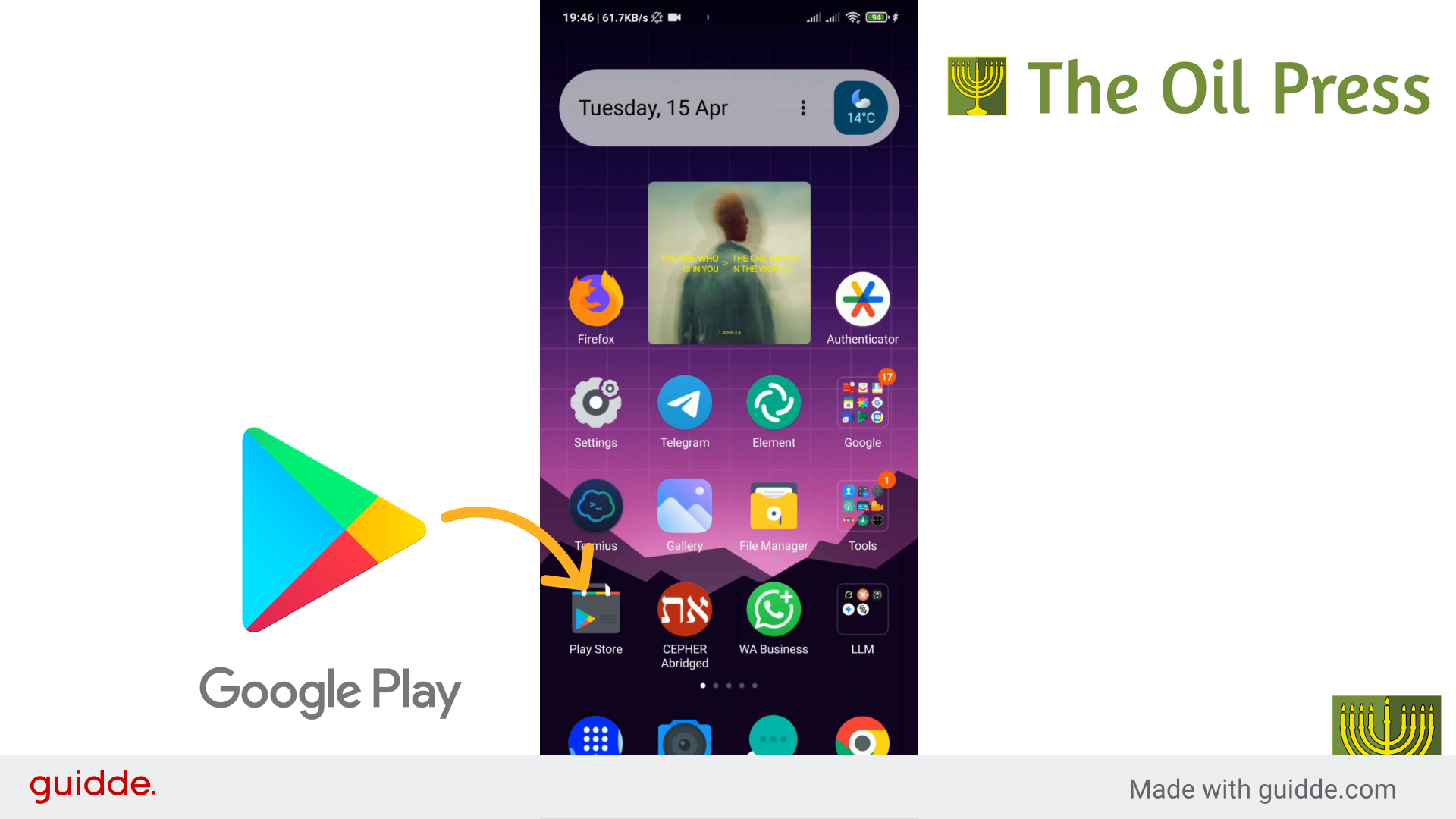
1. Find the Play Store on Your Phone
First, find the 'Play Store' app on your phone. It usually looks like a colorful triangle icon. Go ahead and tap on it to open it.
2. Look for the Play Store Search Bar
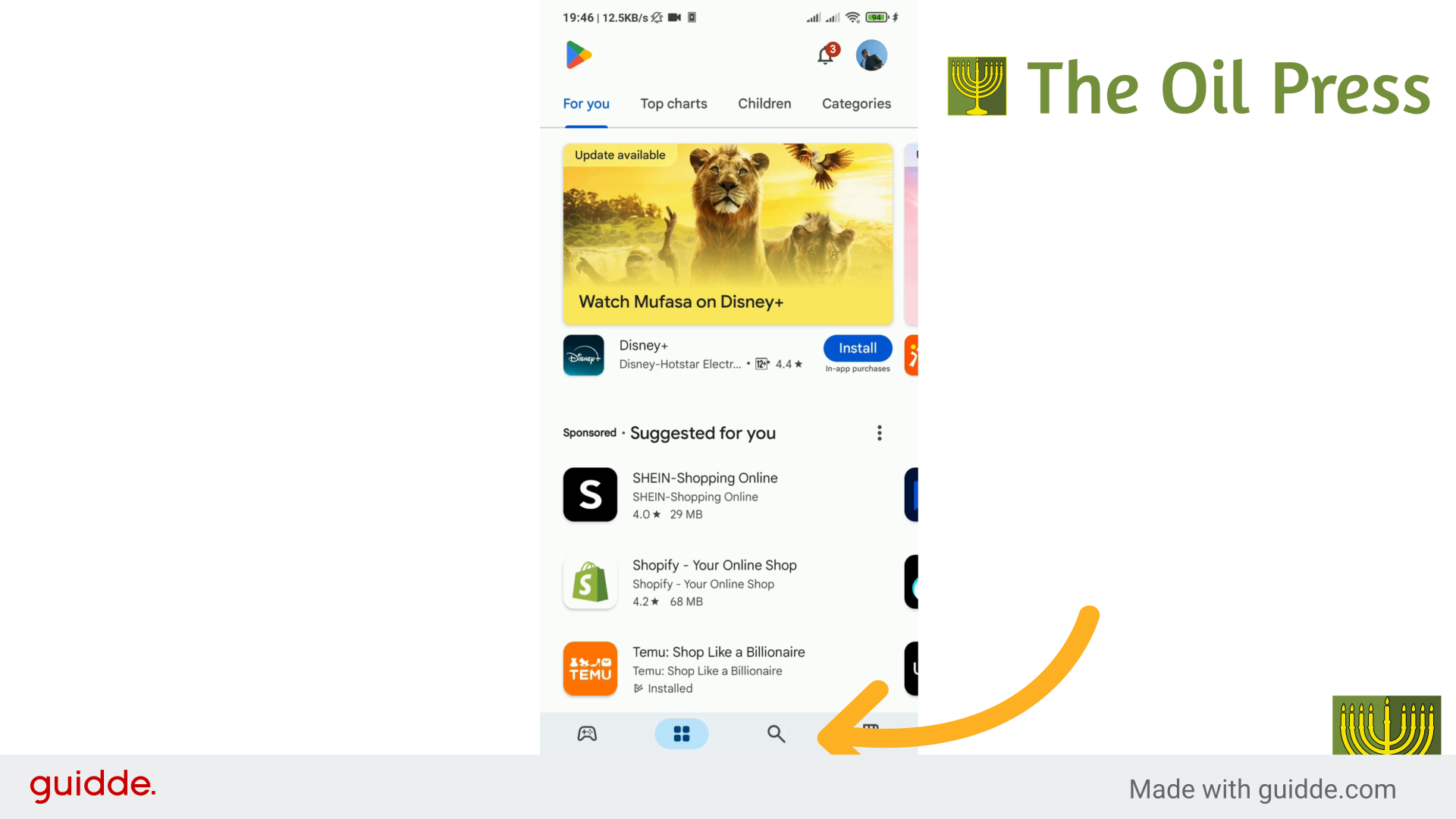
Okay, now you're in the Play Store. At the bottom you'll see a search icon. Tap on it. Now you will see a bar where you can type. Tap on that search bar.
3. Search for the HumHub App
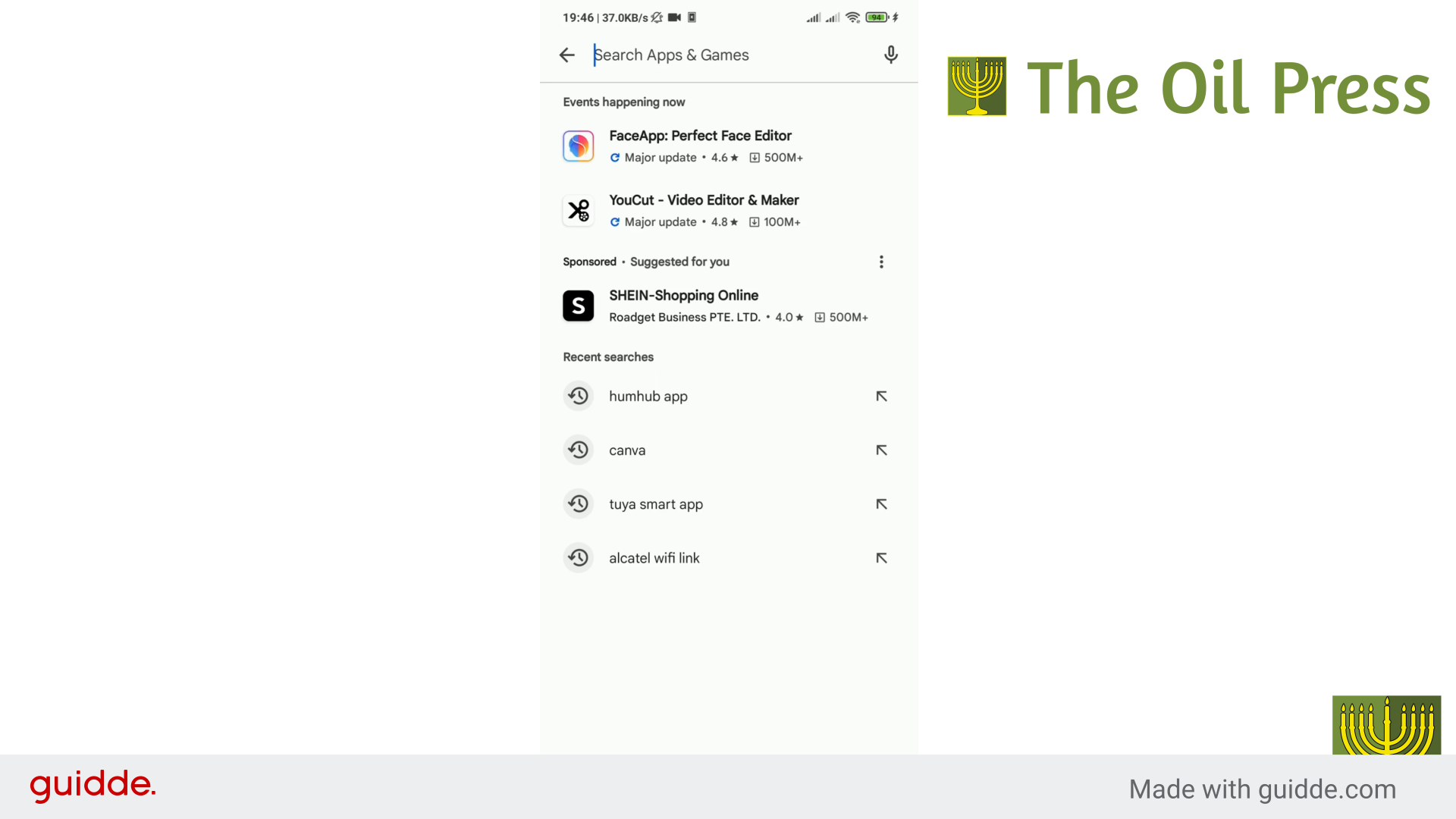
Now, carefully type in the word humhub. You might see 'humhub app' appear as you type, you can tap on that, or just tap the search button.
4. Install the HumHub App
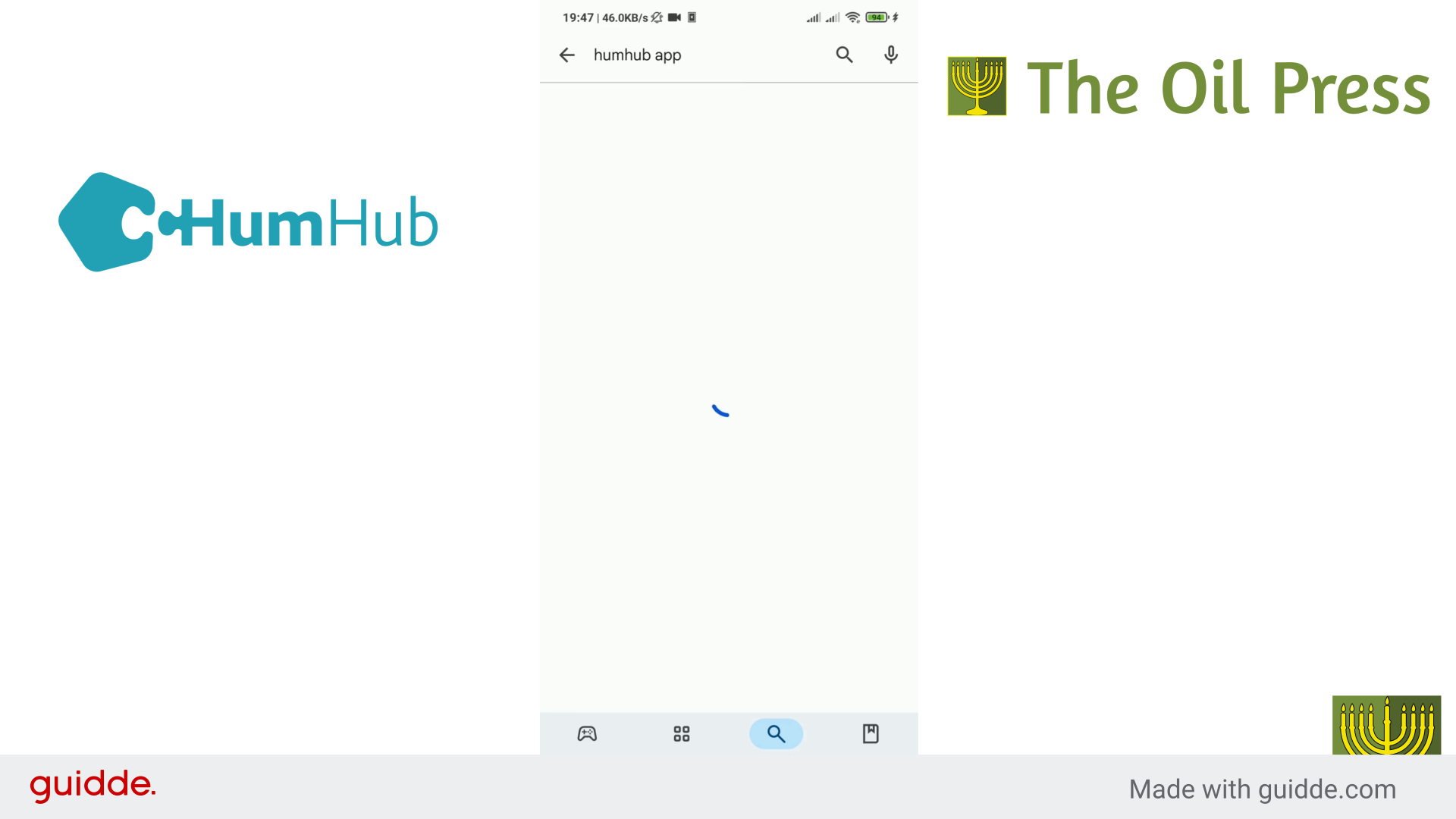
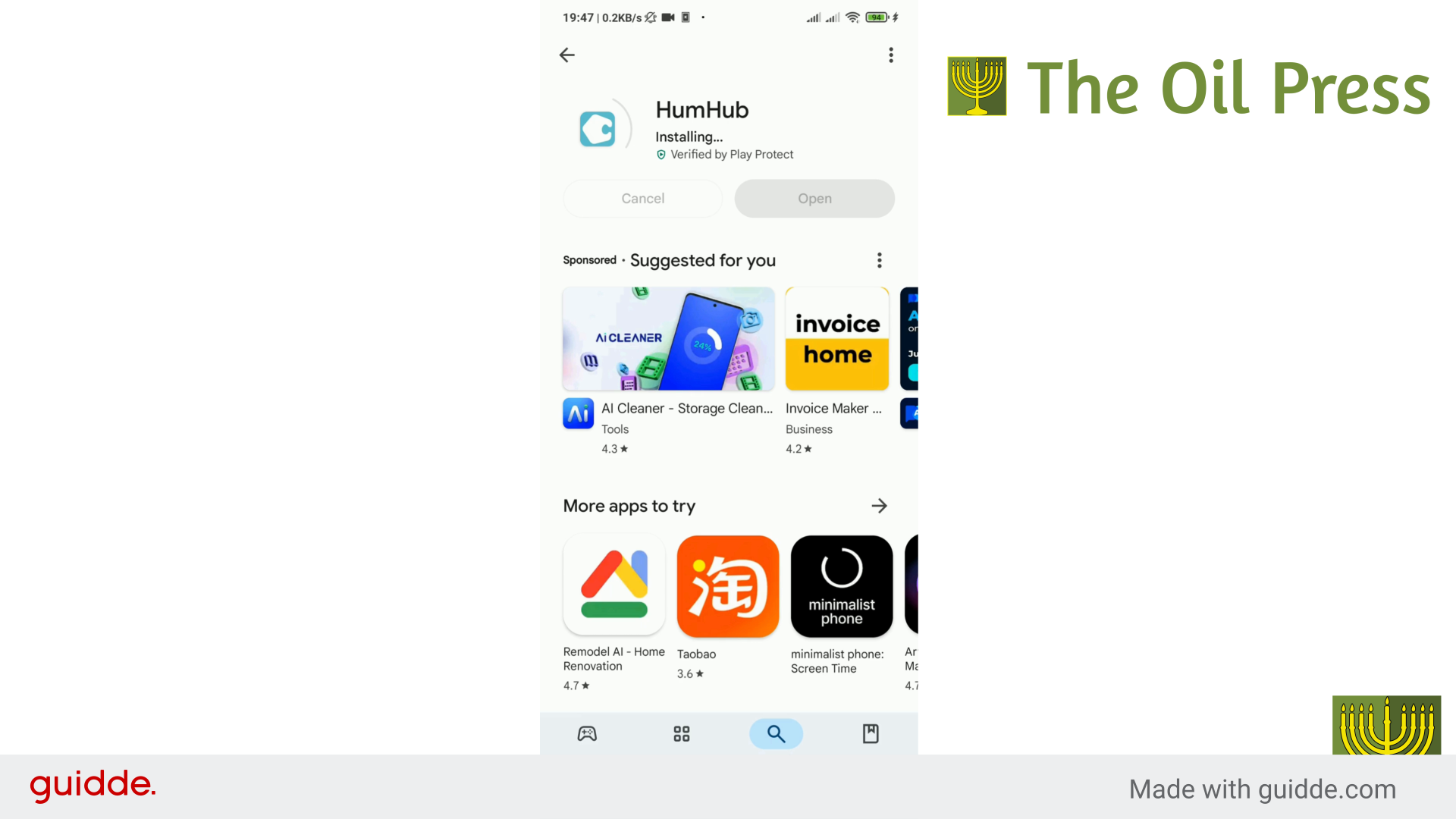
Great! Look for the app called 'HumHub'. It has a light blue logo that looks a bit like a C. See that blue 'Install' button? Tap on 'Install'. Now, your phone will download and install the HumHub app. This might take a little bit, depending on your internet speed. Just wait for it to finish. You'll see the progress circle fill up, and then it will say 'Installing'. Almost there! Your phone might quickly scan the app for safety – that is normal.
5. Open the HumHub App
Once it's finished installing, the button will change to 'Open'. Tap the blue 'Open' button.
6. Allow App Permissions
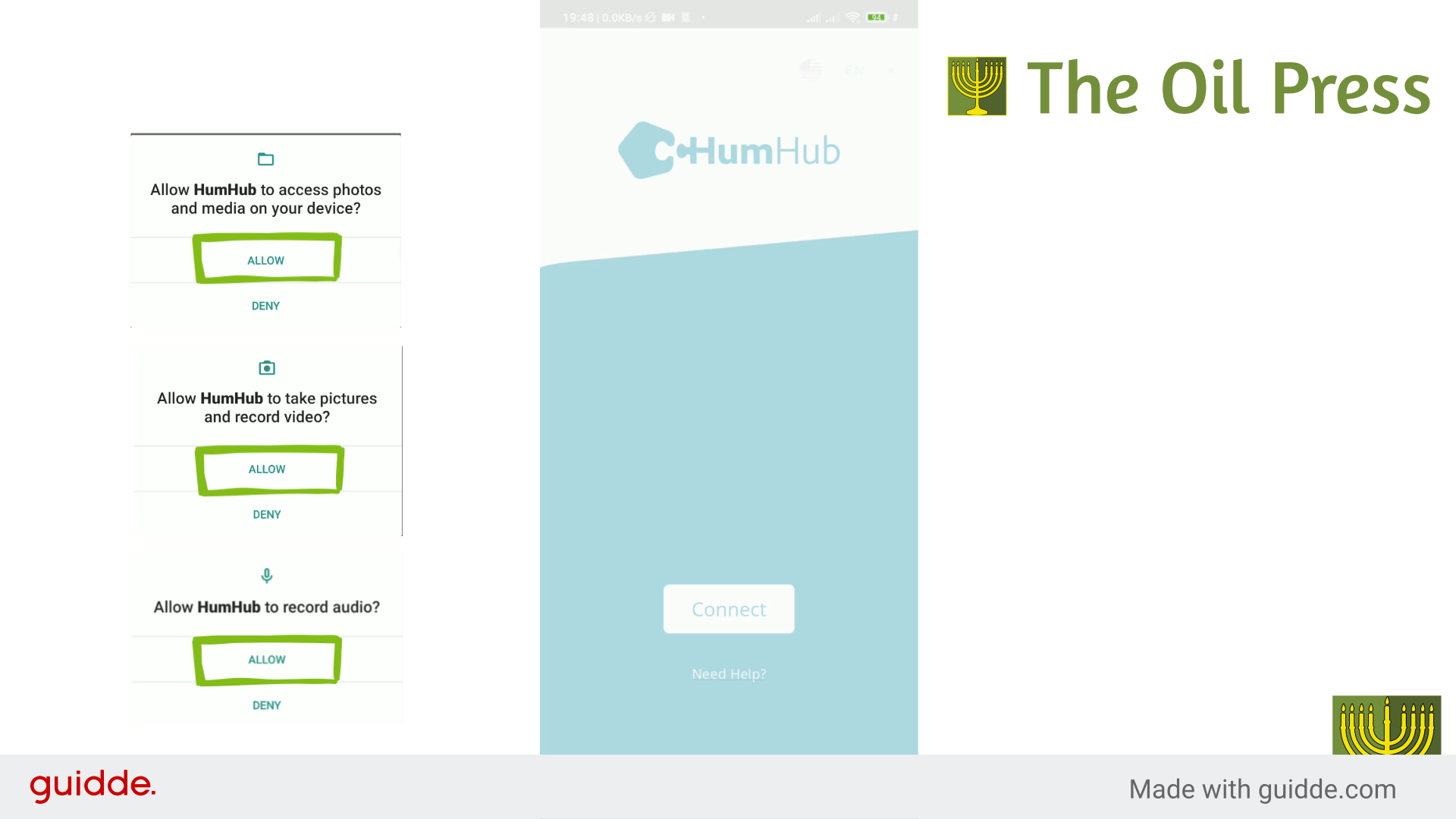
The app might ask for permission to use things like your camera, photos, or microphone. It's safe to tap 'Allow' for these when they pop up. This helps you share content within the community later.
7. Enter The Oil Press Community URL
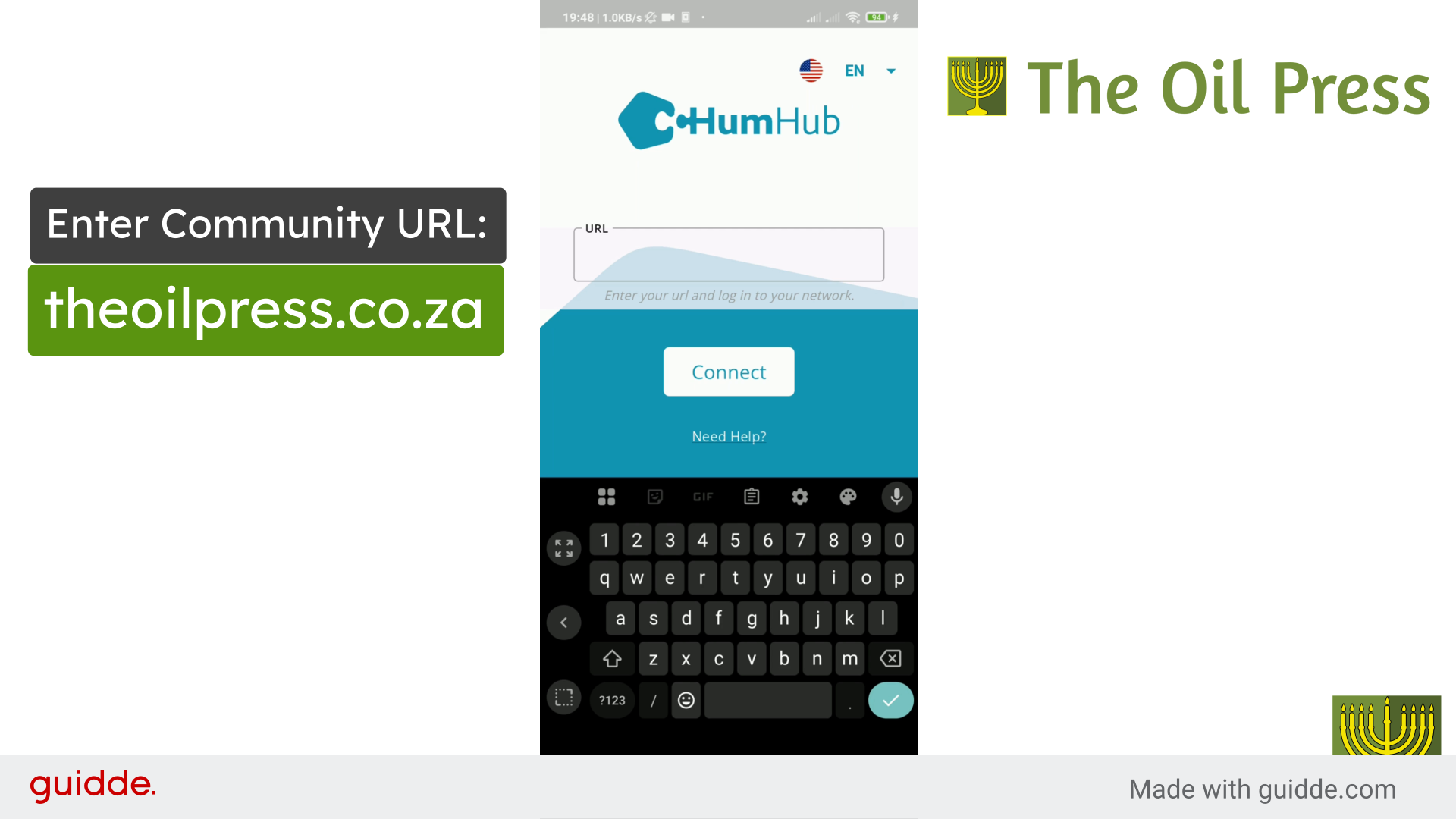
Okay, the HumHub app is open! Now we need to tell it where The Oil Press community is. See the box where it says 'URL'? Tap inside that box. Now, very carefully, type in this exact web address:
theoilpress.co.za
Double-check you typed it correctly. Looks good? Great! Now, tap the 'Connect' button below the box, or the checkmark/enter button on your keyboard. The app will now connect.
8. Sign Up or Sign In Easily with Google
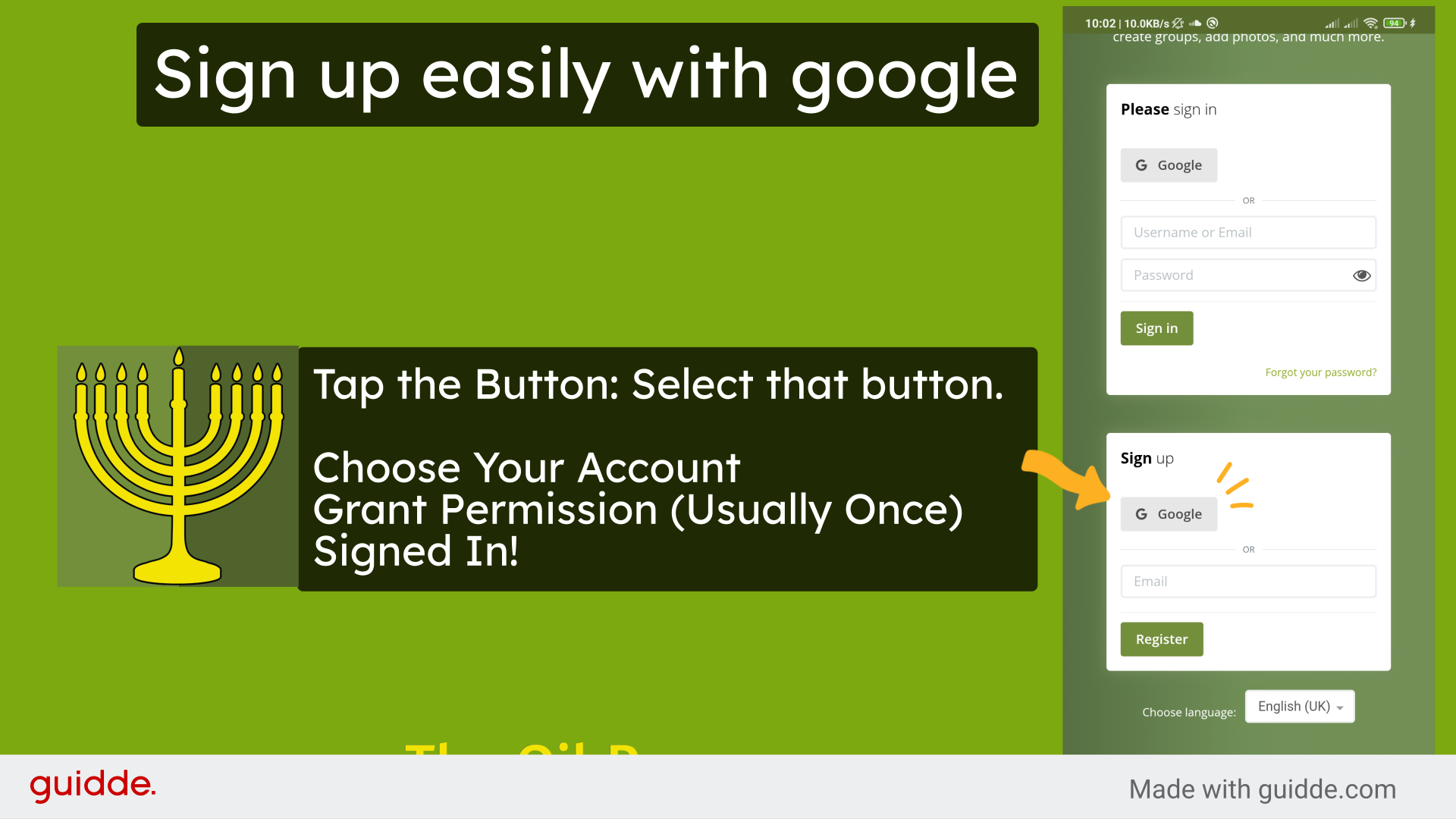
To join, you can sign up using your Google account – just tap the 'Google' button in the 'Sign up' section (or use the 'Login' section if you already have an account). Choose Your Account: Your phone will likely show you the Google Account(s) already added to your device. Tap the account you want to use. Grant Permission (Usually Once): The first time you use "Sign in with Google" for a specific app, it might ask for your permission to share basic information (like your name, email address, and profile picture) from your Google Account with that app. If you trust the app, grant permission. You usually only need to do this once per app. Signed In!: The app will then use your Google Account to sign you in or create your account. You won't need to create or remember a separate password for The Oil Press app.
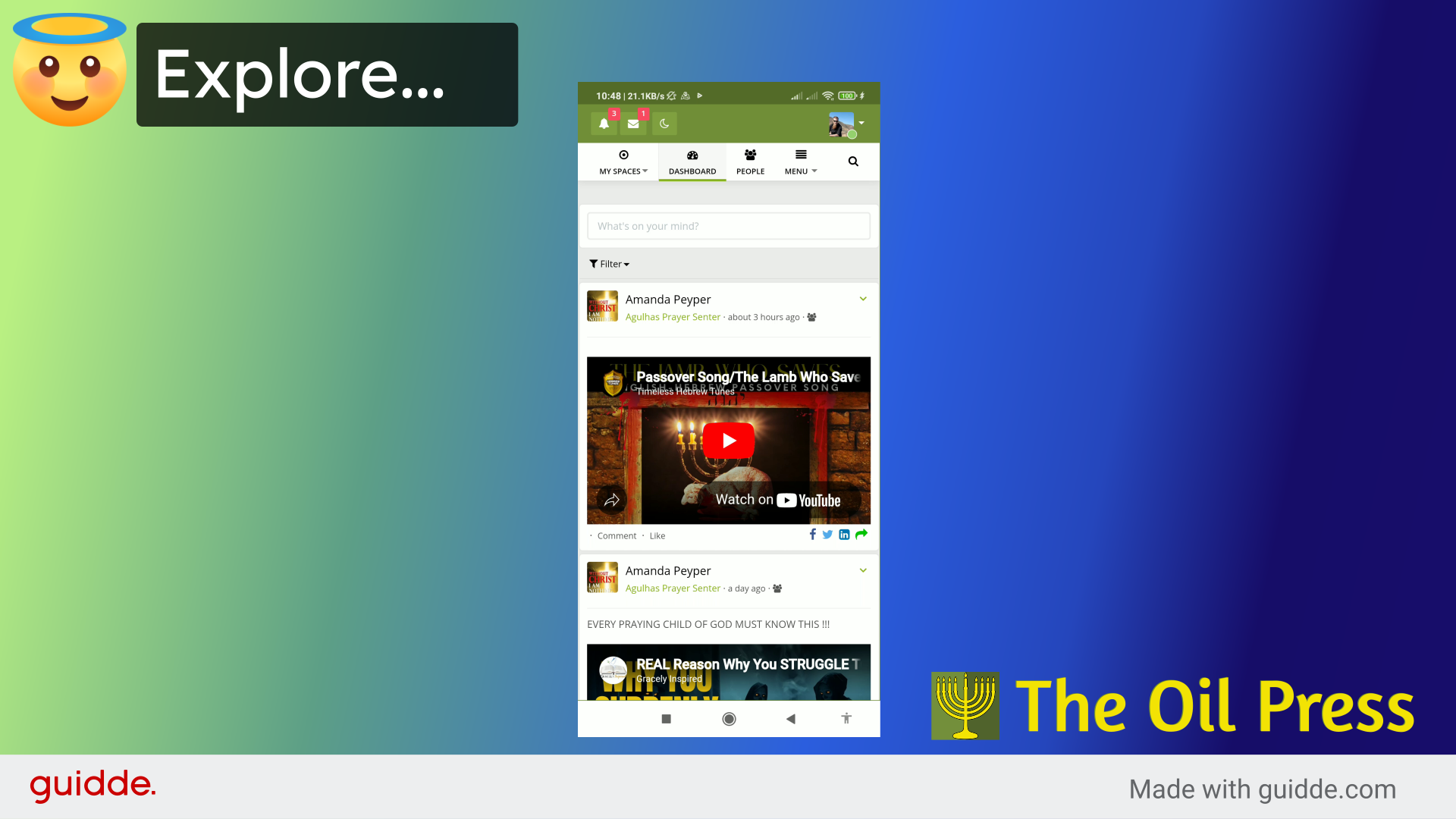
9. Explore The Oil Press Community!
Once you're signed up or signed in, you can explore The Oil Press and become part of the active community. You can make new friends, join groups, add photos, and personalize your profile.
From The Oil Press community - We're really excited to see you join! We wish you a blessed day!